What you will do
Follow your place in the group
Check the leaderboard, see how many matches top players have logged, and understand the level and activity of the group.
Answer RSVP with confidence
Respond to game day invites clearly so managers can build better sessions and avoid last-minute confusion.
Come back for the full story
Use history, recaps, mini tournament summaries, messages, and insights to stay connected even after play ends.
Step 1
Start with the group home and learn what the numbers are telling you
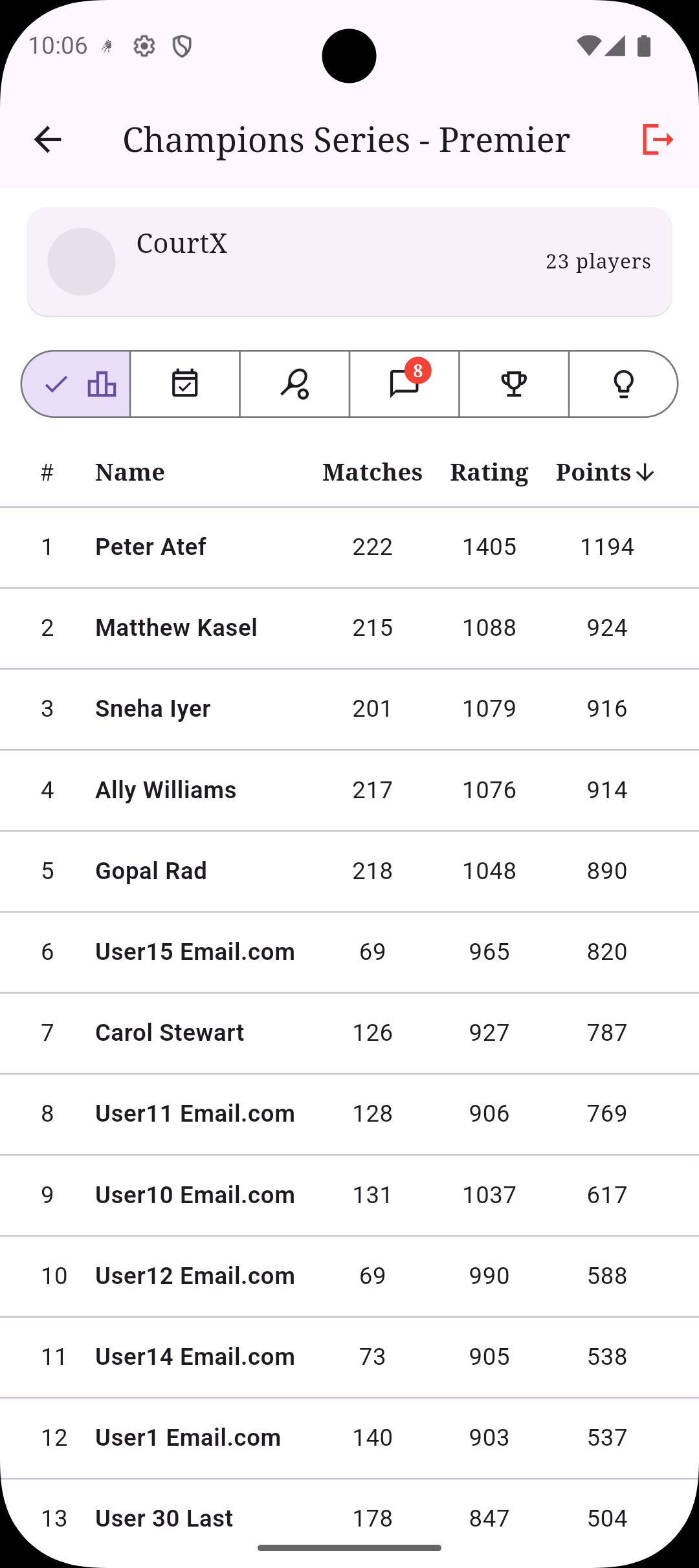
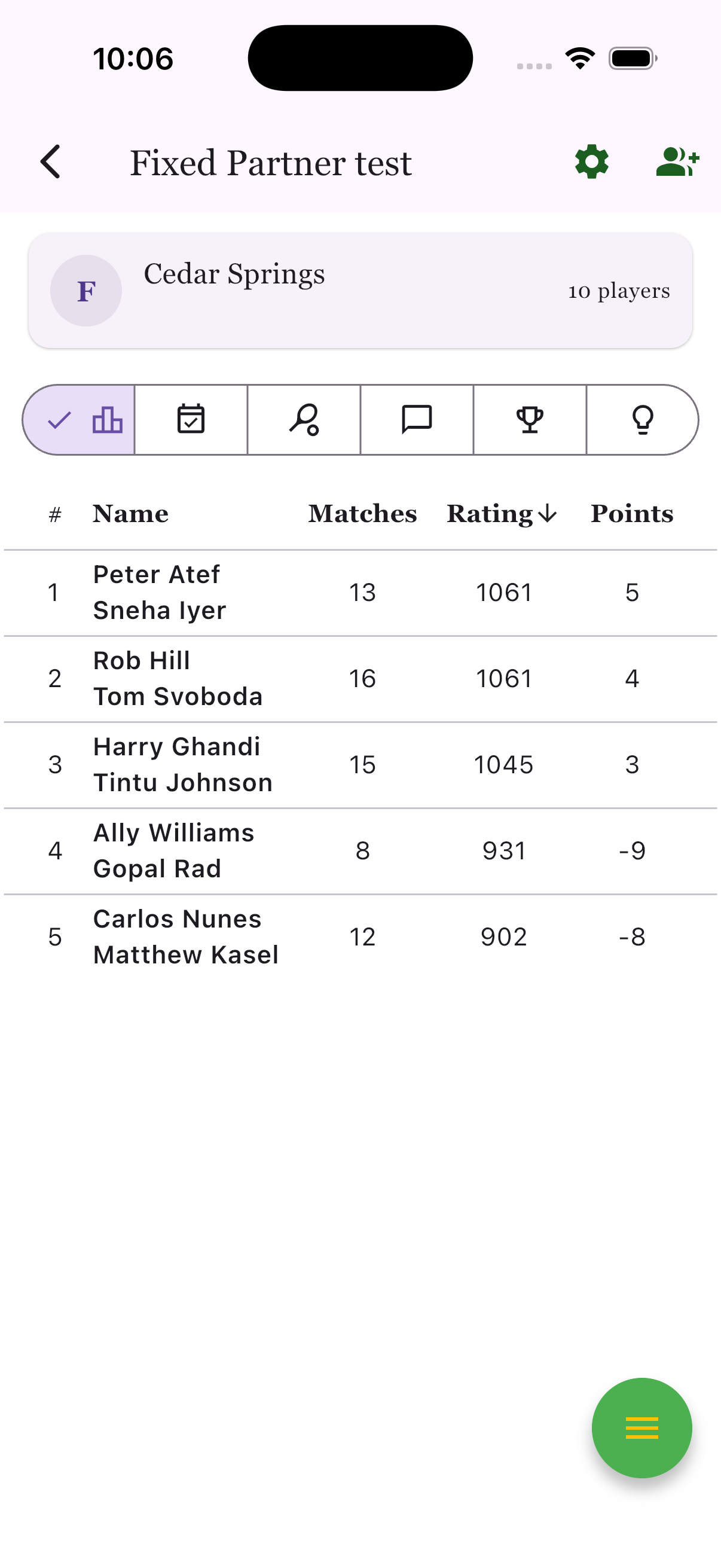
The group home is your quickest read on who is active, how strong the field is, and whether the group tracks individuals or fixed teams. In rotating doubles and singles groups, you will usually see individual players. In fixed-partner groups, you will see pairs ranked together.
- Matches shows activity, not just success. A player with more matches may simply be showing up often.
- Rating and points give you context about form, consistency, and long-term position in the group.
- Tabs across the top are your map: leaderboard, RSVP, search, chat, history, and insights all live here.
If the group uses fixed partners, standings are team-based. You and your partner rise or fall together, and sessions or tournaments will keep your pair intact.
Step 2
Use RSVP early so sessions and game days start cleanly
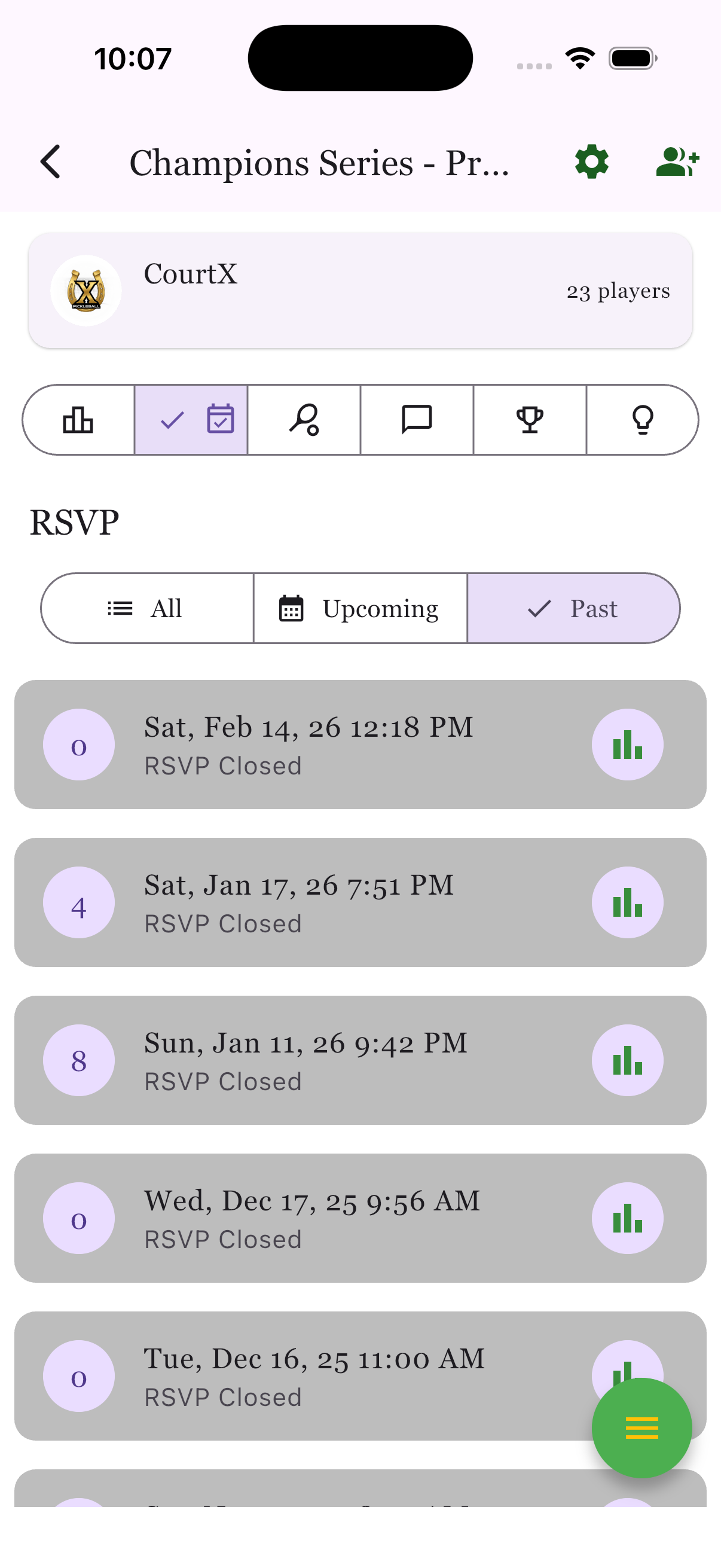
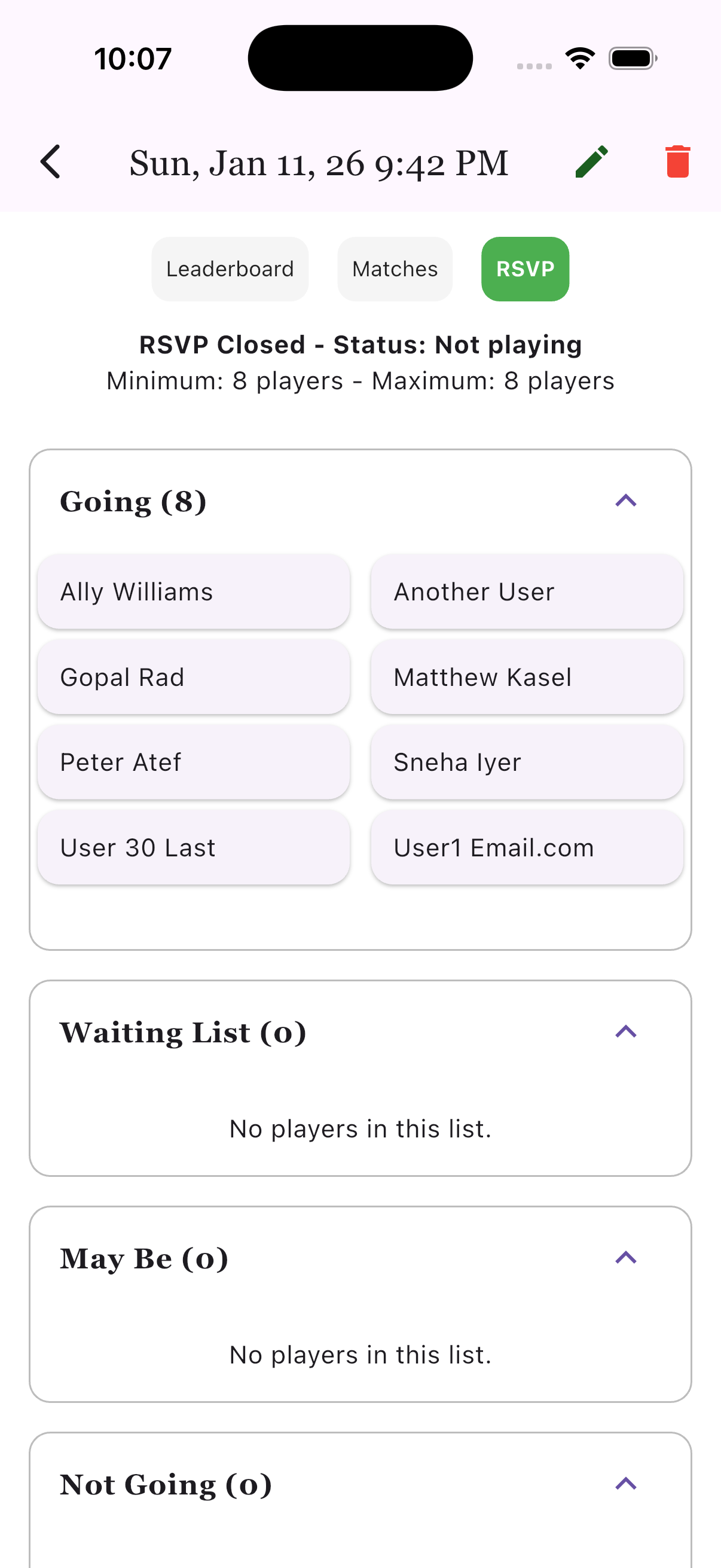
When your group uses RSVP, the app becomes the source of truth for availability. Managers can see who is going, who is waiting, and who has passed. That directly affects player selection for sessions and mini tournaments, so it is worth answering as soon as you know.
- Going means the organizer can plan around you.
- Waiting list or maybe helps when capacity changes later.
- Past RSVP is useful for checking old attendance and seeing how frequently the group runs.
If your status changes on the day, update it in the app and post a short message in group chat. That gives managers the best chance to reshuffle fairly.
Step 3
Use history to revisit sessions, mini tournaments, and final recaps
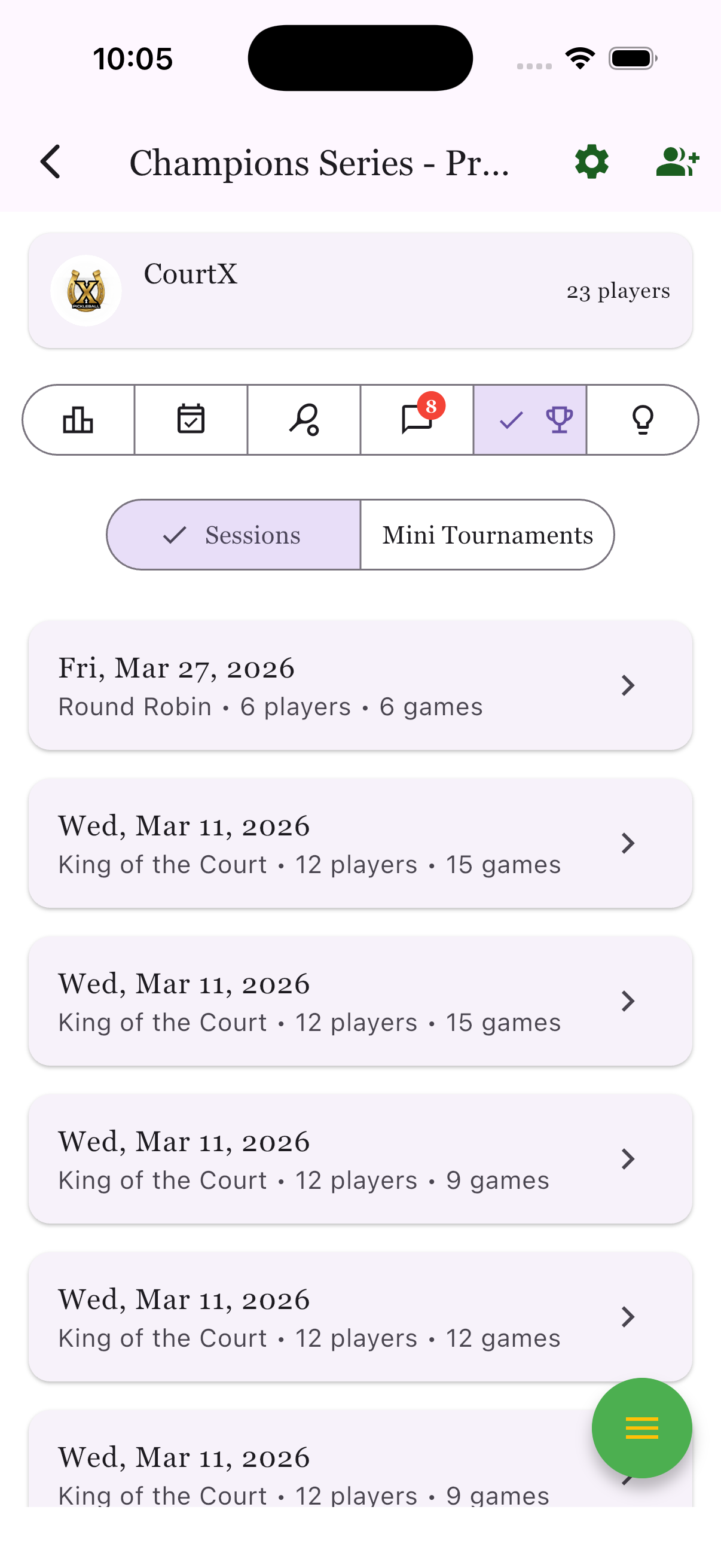
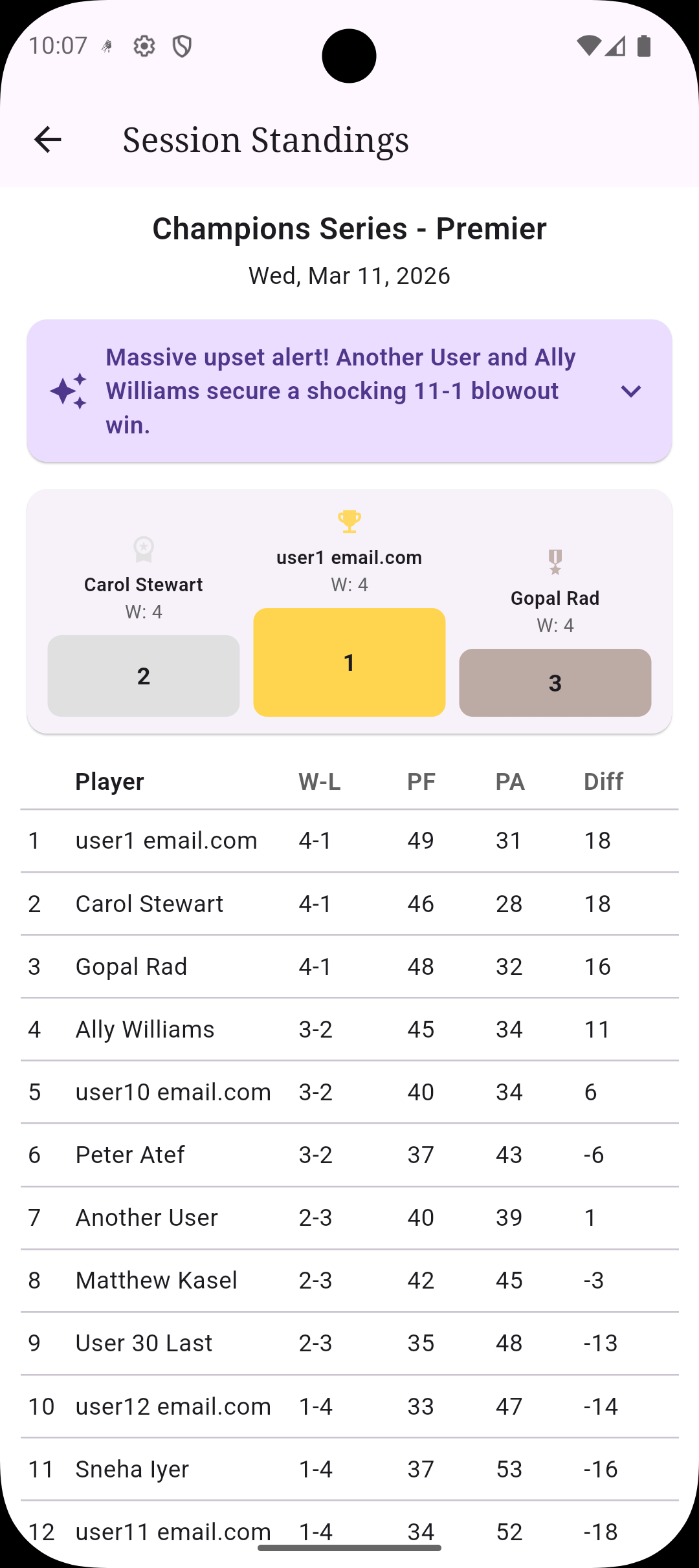
The trophy area of the group keeps completed sessions and completed mini tournaments in separate lists. This is where you go back to review standings, see how many games were played, and read summaries after the pressure of live play is over.
- Sessions show the format, number of players, and number of games played.
- Mini tournaments show champions and runner-ups right from the card list.
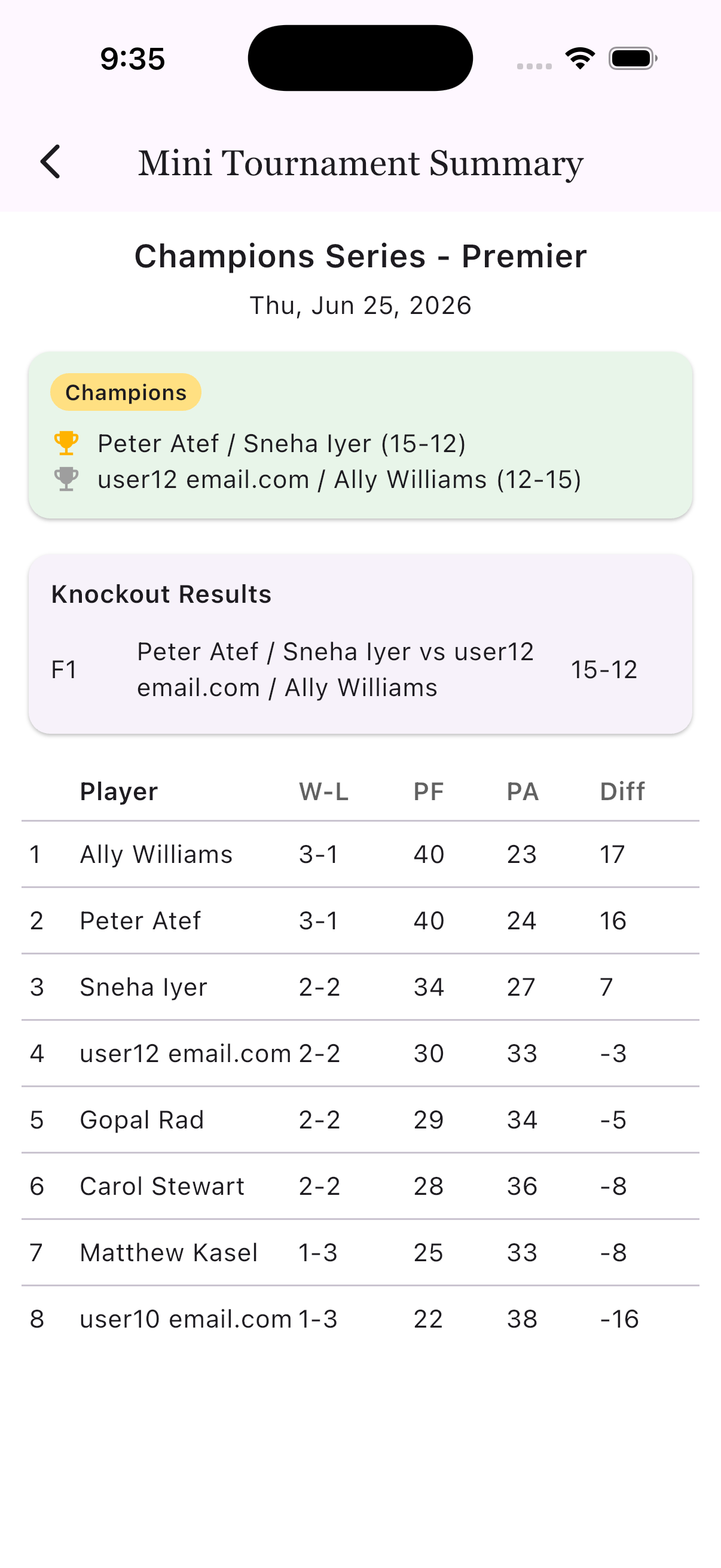
- Recap pages preserve podiums, standings tables, knockout results, and AI-generated highlights.
Step 4
Keep up with messages, insights, and completed mini tournaments
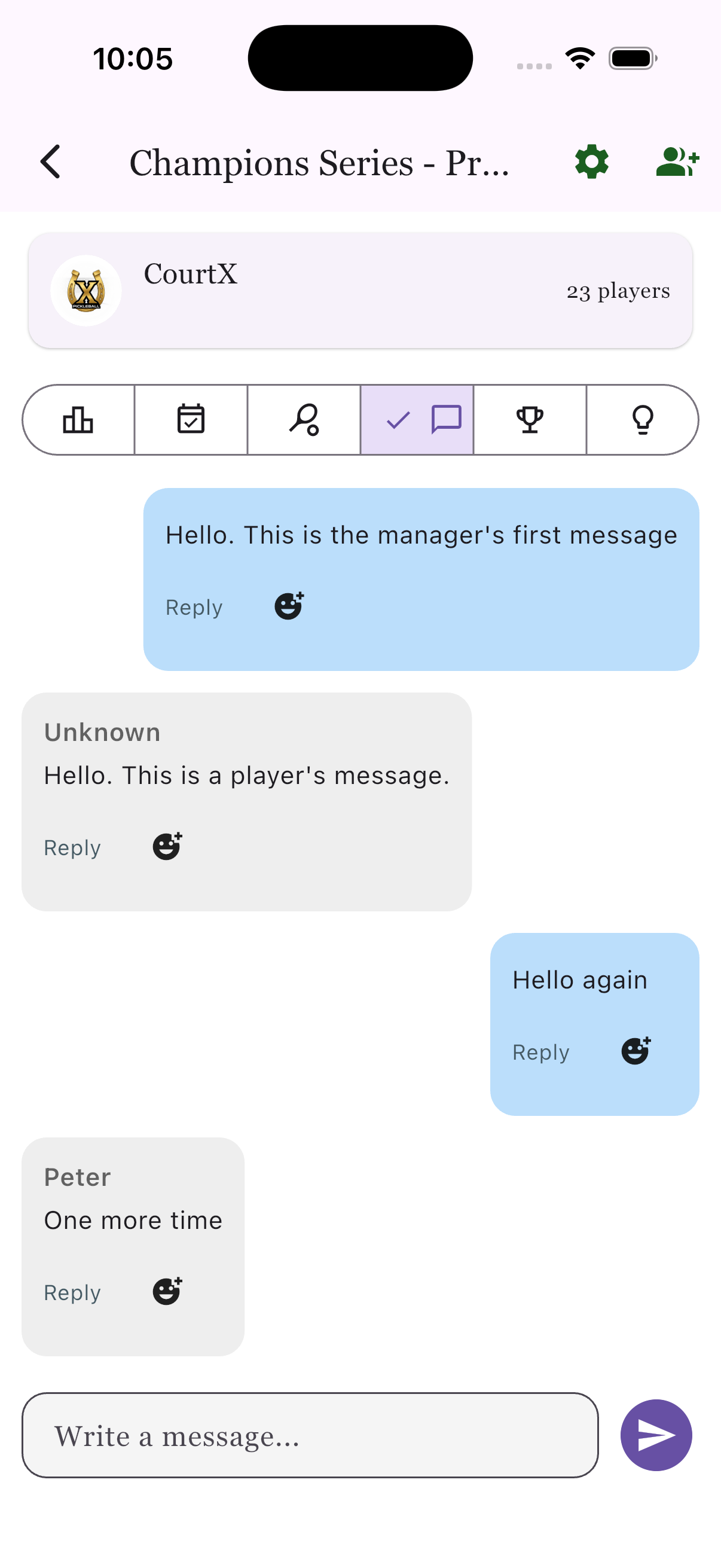
Groups are not only for scheduling. They also hold conversations, reflections, and post-event insight. Chat is where organizers often post important updates. The insights tab becomes more useful as results accumulate. The mini tournament history area gives you a clean place to revisit champions, runner-ups, knockout results, and full standings.
- Messages are the fastest way to catch organizer updates or reply with context.
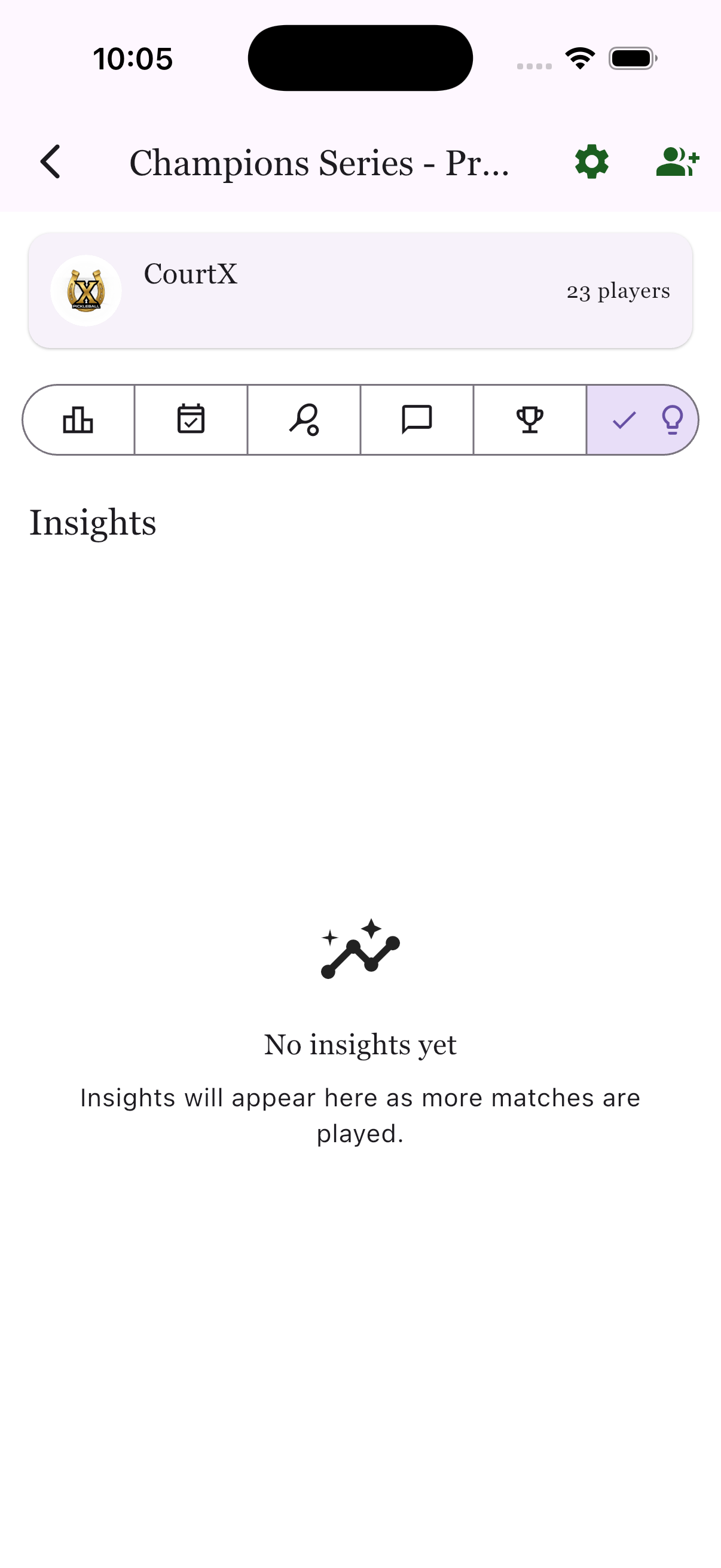
- Insights grow over time as the group logs more results.
- Mini tournament summaries keep both the final winners and the pool/knockout story in one place.
Related Guides
Keep exploring the same workflow from the other side
If you organize some days and just participate on others, these guides help you move cleanly between roles.
Use the broader player overview if you want the full map across groups, sessions, tournaments, and profiles.
Organizer guideCreate groups, manage permissions, and keep the roster healthy.
Player guideSee what to expect when a manager launches a session from the group.
Player guideFollow pools, knockout rounds, and the final tournament recap.
Player mindset
The best groups feel easy because players keep their signals clean
Reply to RSVP early, check chat before you leave for the venue, and use recap pages to understand the bigger story of your results. That one habit loop helps organizers run better days and helps you get more value out of every session and mini tournament.
- Check the group home before your first session.
- Update RSVP as soon as plans change.
- Use history and recaps to review what actually happened.
- Watch the chat tab for organizer instructions.